Developer Getting Started Guide
Welcome to the Contain Platform! This guide will walk you through the entire lifecycle of deploying your first application, from source code on your local machine to a running service in a Kubernetes cluster.
By the end of this guide, you will have:
- Written a simple "Hello World" web application.
- Containerized the application using Docker.
- Pushed the container image to a registry.
- Configured your local environment to connect to your cluster.
- Structured a GitOps repository.
- Deployed the application using a GitOps workflow with Flux.
- Accessed the running application.
1. Create a "Hello World" Application
First, let's create a simple web server application. This example uses Go, but you can use any language.
Create a new directory for your application source code (e.g., hello-app/) and
add a file named main.go.
// hello-app/main.go
package main

import (
    "fmt"
    "log"
    "net/http"
    "os"
)

func main() {
    http.HandleFunc("/", func(w http.ResponseWriter, r *http.Request) {
        hostname, _ := os.Hostname()
        fmt.Fprintf(w, "Hello from the Contain Platform!\n\nHostname: %s\n", hostname)
    })

    log.Println("Server starting on port 8080...")
    if err := http.ListenAndServe(":8080", nil); err != nil {
        log.Fatal(err)
    }
}
Containerize the Application
Next, create a Dockerfile in the same directory. This file defines the steps
to build your Go application into a secure, minimal container image using a
multi-stage build.
# hello-app/Dockerfile
# Build Stage
FROM golang:alpine AS builder

WORKDIR /app

# Copy source code and download dependencies
# Create a go.mod file first: `go mod init hello-app`
COPY go.mod ./
RUN go mod download
COPY . .

# Build the static, production-ready binary
RUN CGO_ENABLED=0 GOOS=linux go build -o /hello-app .

# Final Stage
FROM gcr.io/distroless/static-debian11

# Copy the binary from the build stage
COPY --from=builder /hello-app /

# Expose the port the app listens on
EXPOSE 8080

# Set the entrypoint
ENTRYPOINT ["/hello-app"]
Build and Push the Image
Now, build the container image and push it to your container registry.
Docker Registry
You need to have access to a docker registry before you do this. This could be Docker Hub or GitHub Container Registry.
Replace Placeholders
Remember to replace <your-registry>/<your-repo>/hello-app:v0.1.0 with the
actual path to your registry and repository.
# Navigate to your application source directory
cd hello-app/

# (If you haven't already) Initialize the Go module
go mod init hello-app
go mod tidy

# Build the image
docker build -t <your-registry>/<your-repo>/hello-app:v0.1.0 .

# Push the image to your registry
docker push <your-registry>/<your-repo>/hello-app:v0.1.0
2. Prerequisites and Preparation
Before you can deploy your new application, you need to configure your local environment to connect to your Kubernetes cluster and set up the GitOps repository that will manage your deployments.
This section is included from our Contain Base documentation and provides the essential setup steps.
Connecting to Your Cluster
The method for connecting to your cluster depends on where the cluster's control plane is hosted.
The GitOps Workflow
While using the Kubernetes API directly is useful for inspection and troubleshooting, the primary way you will manage your applications on the Contain Platform is through Git. See the Deployment Service Introduction for more information.
Making direct changes to the cluster (e.g., with kubectl apply or kubectl
edit) is discouraged, as it bypasses the GitOps workflow. This can lead to
inconsistencies between the desired state in your repository and the actual
state of your applications. Depending on your role, you may only have
read-only access to the cluster.
Managed Clusters (Where we manage the control plane)
For clusters where the Contain Platform manages the control plane, your primary entry point for accessing cluster information and your configuration file is through a dedicated Grafana instance.
1. Access Grafana and Download Your kubeconfig
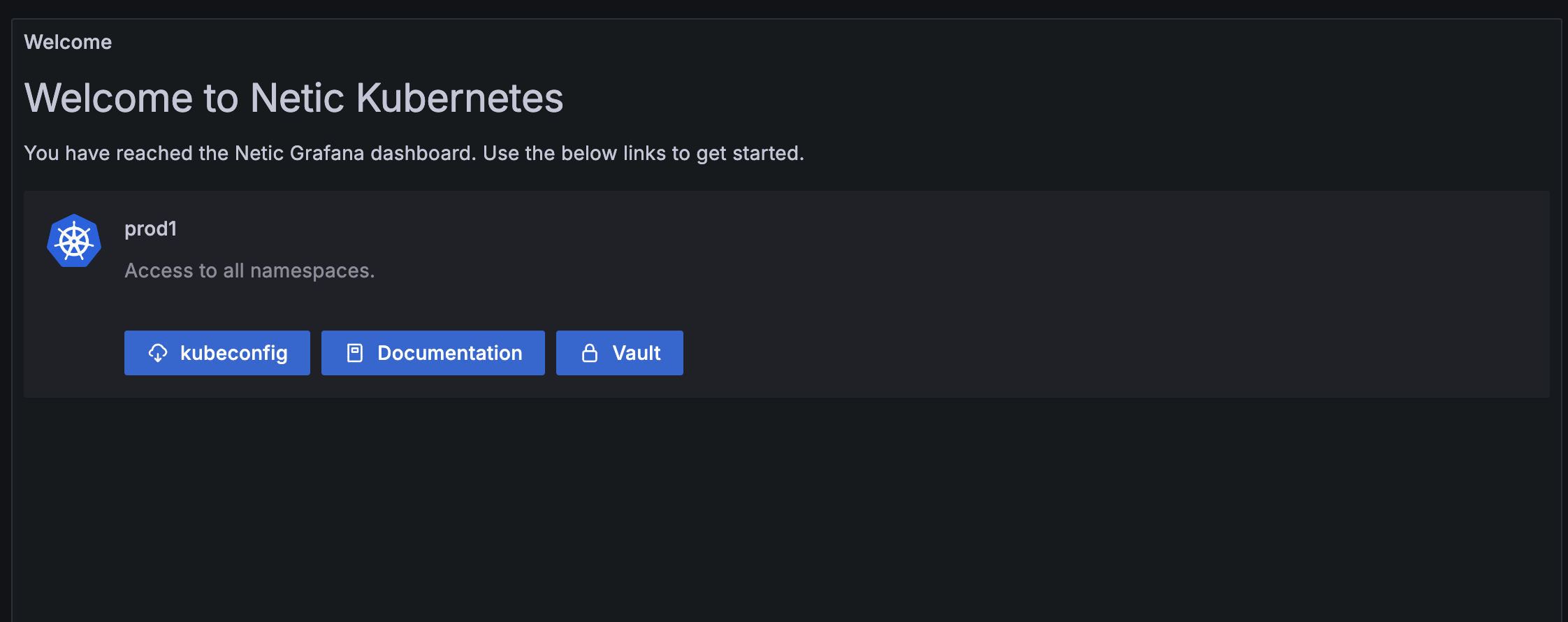
Each customer has a central Grafana instance that provides read-only access to logs and metrics for your applications and clusters, as well as links to other services and configuration files.
-
Find Your Grafana URL: The URL for the Grafana instance that shows metrics for your cluster can be found in the Netic Docs space that the cluster belongs to. The general format is
https://<provider-name>.dashboard.netic.dk/, where<provider-name>is the name of the provider your clusters exists under. -
Log In: Log in to Grafana using your provided credentials.
-
Locate Your Cluster: Within Grafana, you can view the clusters and namespaces to which you have access. Here you can also find direct links to other services like Vault.
-
Download
kubeconfig: In your cluster's dashboard, locate and use the download link for your Kubernetes configuration (kubeconfig). This file contains the credentials and endpoint informationkubectlneeds to connect to your cluster's API server.
2. Configure Local Access with kubectl and OIDC
The Contain Platform uses OIDC for secure authentication. To enable this in your
local terminal, you need a helper tool called kubelogin.
-
Install
For other installation methods, please see the official kubelogin installation guide.kubelogin: This is akubectlplugin for OIDC authentication. The easiest way to install it is with a package manager. For example, on macOS with Homebrew: -
Set Up Your
kubeconfig:- Place the
kubeconfigfile you downloaded from Grafana in a secure location (e.g.,~/.kube/). - Point the
KUBECONFIGenvironment variable to your downloaded file. It is common practice to add this command to your shell's startup file (e.g.,~/.zshrc,~/.bash_profile, or~/.bashrc).
- Place the
-
Log In: The first time you run a
kubectlcommand,kubeloginwill automatically open a browser window and prompt you to log in via Keycloak. After you successfully authenticate, it will securely store a token for futurekubectlcommands.
3. Test Your Connection
To verify that everything is configured correctly, run the following command in your terminal:
If the connection is successful, you will see a list of the Kubernetes namespaces that you are authorized to view.
Public Cloud Clusters (AWS, Azure, GCP)
For clusters running on a managed Kubernetes service from a public cloud
provider, you should follow the provider's official documentation for
authenticating and connecting to the cluster. Their command-line tools are
designed to handle the creation and management of your kubeconfig file.
- Amazon EKS: Creating a
kubeconfigfor Amazon EKS - Azure AKS: Connect to an Azure Kubernetes Service (AKS) cluster
- Google GKE: Configure cluster access for
kubectl
Recommended Tool: k9s
While kubectl is the standard command-line tool for interacting with
Kubernetes, many users find a terminal-based UI to be more productive for
day-to-day tasks.
We highly recommend k9s, a powerful tool that provides an interactive dashboard inside your terminal. It makes it easy to navigate your cluster, view the status of your resources, stream logs, and even exec into pods.
You can find the installation guide here: k9s Installation.
GitOps Preparations: Your Repository
The Deployment Service on the Contain Platform uses a GitOps workflow, which means your Git repository is the single source of truth for your applications.
We can provide you with a Git repository with the necessary credentials to get started, or you can bring your own. The most important first step is to establish a clear and scalable directory structure.
We recommend following the structure advised by the Flux community, which separates concerns between cluster-level configuration and application workloads.
A good starting point for your repository structure looks like this:
.
├── clusters
│   └── my-cluster          # Contains the Flux configuration for your cluster
│       └── apps-sync.yaml
└── apps
    └── base                # Contains the manifests for your applications
        ├── app1
        └── app2
clusters/: This is the entry point for Flux. It defines which sets of applications should be deployed to a cluster.apps/: This directory contains the actual Kubernetes manifests (Deployment,Service, etc.) for each of your applications.
3. Deploy with GitOps
With your local environment configured and your GitOps repository available, you are ready to deploy. The process follows these steps:
- Provision the Namespace: First, you tell our automated Namespace Provisioning service to create a secure, ready-to-use namespace for your application.
- Define the Application: You create the standard Kubernetes manifests
(
Deployment,Service, etc.) that define your application. - Configure the Cluster: You tell the GitOps controller (Flux) to deploy your application by adding it to the cluster's Kustomize configuration.
Step 1: Provision the Namespace
Before deploying your application, you must first create a namespace for it. We manage this through a dedicated Namespace Provisioning service.
You request a new namespace by creating a ProjectBootstrap resource in your
GitOps repository. Create the following file:
# clusters/my-cluster/hello-app-project.yaml
apiVersion: project.tcs.trifork.com/v1alpha1
kind: ProjectBootstrap
metadata:
  name: hello-app
  namespace: netic-gitops-system
spec:
  namespace: hello-app
  config:
    ref: default
    size: default
  git:
    branch: main
    path: ./clusters/my-cluster
This manifest tells our namespace operator to create a new namespace called
hello-app with a set of secure, default configurations.
Advanced Topic
The ProjectBootstrap resource is a powerful tool for customizing new
namespaces. While this example uses the default configuration, you can
learn more in the dedicated Namespace Provisioning Service
guide.
Step 2: Define the Application Manifests
In your GitOps repository, create a new directory for your application:
apps/hello-app/. Inside this directory, create the following Kubernetes
manifests.
# apps/hello-app/deployment.yaml
apiVersion: apps/v1
kind: Deployment
metadata:
  name: hello-app
  namespace: hello-app
spec:
  replicas: 2
  selector:
    matchLabels:
      app: hello-app
  template:
    metadata:
      labels:
        app: hello-app
    spec:
      containers:
      - name: app
        # --- IMPORTANT ---
        # Replace this with the image you pushed
        image: <your-registry>/<your-repo>/hello-app:v0.1.0
        ports:
        - containerPort: 8080
# apps/hello-app/service.yaml
apiVersion: v1
kind: Service
metadata:
  name: hello-app
  namespace: hello-app
spec:
  type: ClusterIP
  selector:
    app: hello-app
  ports:
  - port: 80
    targetPort: 8080
Now, create a kustomization.yaml file in the same directory. This file tells
Kustomize (and Flux) which resources are part of the hello-app application.
# apps/hello-app/kustomization.yaml
apiVersion: kustomize.config.k8s.io/v1beta1
kind: Kustomization
resources:
  - deployment.yaml
  - service.yaml
What about the Namespace?
The ProjectBootstrap resource from Step 1 handles the creation of the
namespace for us.
Step 3: Configure the Cluster to Deploy the App
Finally, you need to tell the GitOps controller to deploy both the project and
the application. You do this by editing the kustomization.yaml file for your
cluster, which is typically located at clusters/my-cluster/kustomization.yaml.
Add your new ProjectBootstrap manifest and the path to your application's
manifests to this file.
# clusters/my-cluster/kustomization.yaml
apiVersion: kustomize.config.k8s.io/v1beta1
kind: Kustomization
resources:
  # This tells Flux to apply the projectbootstrap manifest
  - hello-app-project.yaml
  # This tells Flux to apply all the manifests in the apps/hello-app directory
  - ../../apps/hello-app
Step 4: Commit and Push
Your final repository structure should look like this:
.
├── apps
│   └── hello-app
│       ├── deployment.yaml
│       ├── kustomization.yaml
│       └── service.yaml
└── clusters
    └── my-cluster
        ├── hello-app-project.yaml
        └── kustomization.yaml
Commit all your new and updated files to the GitOps repository and push the changes.
Flux will now automatically detect the changes. It will first apply the
ProjectBootstrap, causing the namespace operator to create and secure the
hello-app namespace. Then, Flux will deploy your application's Deployment
and Service into that new namespace.
4. Verify and Access Your Application
After a few moments for both the namespace to be created and the application to be deployed, you can verify that everything was successful.
Check the Pods
Use kubectl to check the status of the pods in the new hello-app namespace.
hello-app pods with a STATUS of Running.
Access with Port Forwarding
The Service you created is of type ClusterIP, which means it's only
accessible from within the cluster. To access it for testing, you can use
kubectl port-forward to create a secure tunnel from your local machine
directly to the service.
Now, open your web browser and navigate to http://localhost:8080. You should see the "Hello from the Contain Platform!" message from your application.
5. Next Steps
Congratulations! You have successfully deployed your first application to the Contain Platform using a secure, automated GitOps workflow.
From here, you can continue your journey by exploring how to operate and debug your new service.
Operating and Observability
To gain deep insights into your application's performance, you will need to configure observability. This involves:
- Instrumenting your application to expose metrics (e.g., with a Prometheus client library).
- Creating a
ServiceMonitorresource to tell the platform's observability service how to scrape metrics from your application.
For more details, see the Application Observability Service documentation.
Debugging
When you need to troubleshoot a running application, one of the most powerful
techniques is to attach a debug container. This allows you to connect a
separate container with a full set of debugging tools (like curl, netcat, or
a shell) to your running application's pod, without having to include those
tools in your production container image.